

Motion capture for Unreal Engine
Markerless Multicam Motion Capture.
Precise Human Input.
Create a motion capture volume anywhere, using just smartphones or action cameras.
Precision
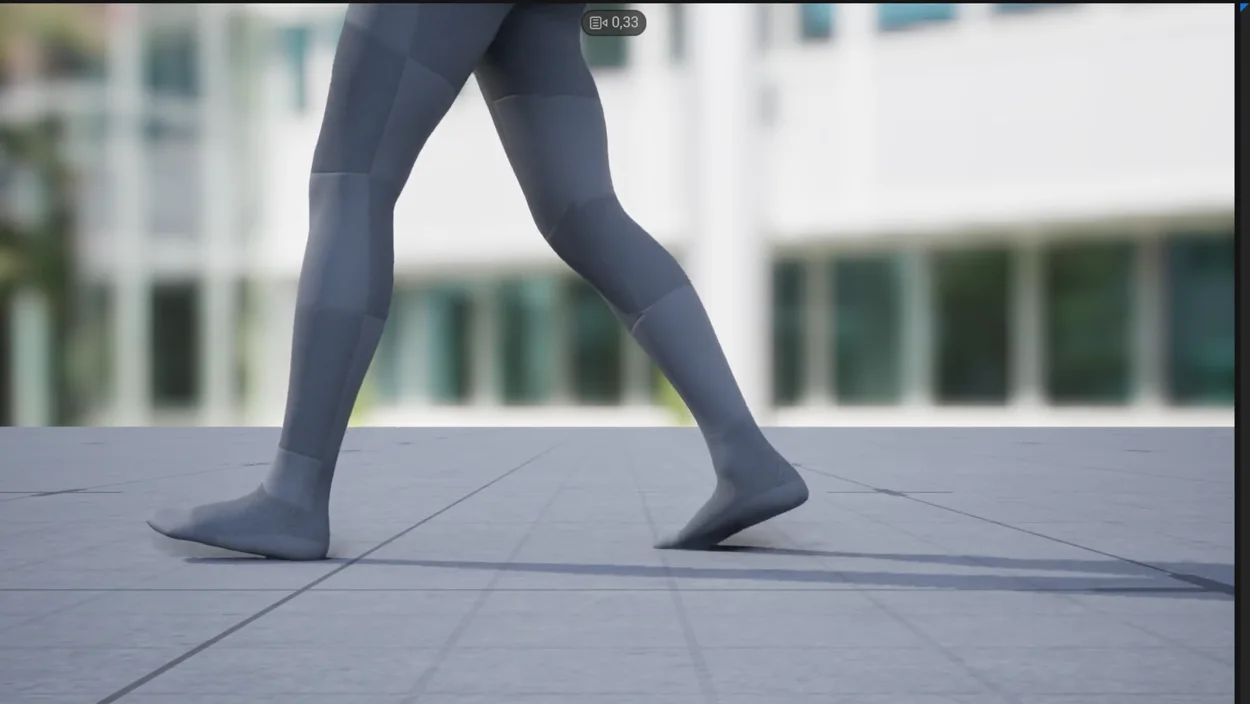
Capture the Nuance of Human Motion.
Studio-grade motion capture without suits or markers. Capture the weight, timing and gestures that make a performance feel human.
Freedom
The World Is Your Studio.
Set up a portable capture volume with smartphones or action cameras. Asgard calibrates the cameras from your recordings, so you can shoot without a dedicated studio.
-
 iPhone
-
 Galaxy Ultra
-
 GoPro HERO
-
 DJI Osmo Action
Match your cameras at 60 fps and use 4K where available.
See the camera guide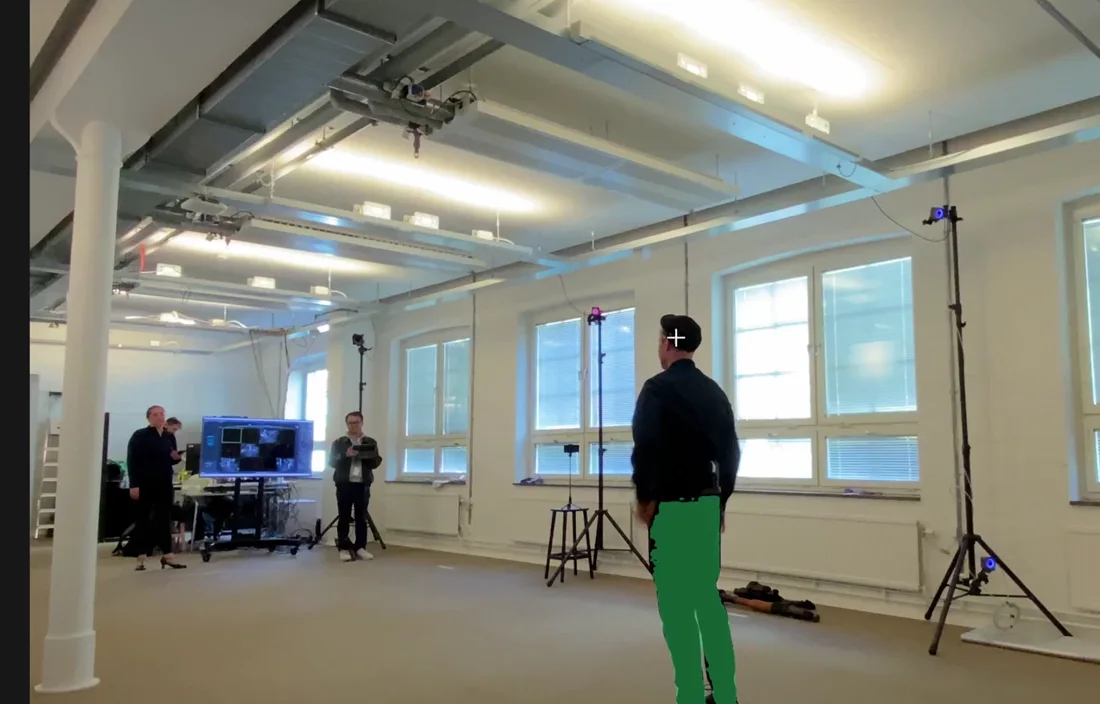
From Performance to MetaHuman.
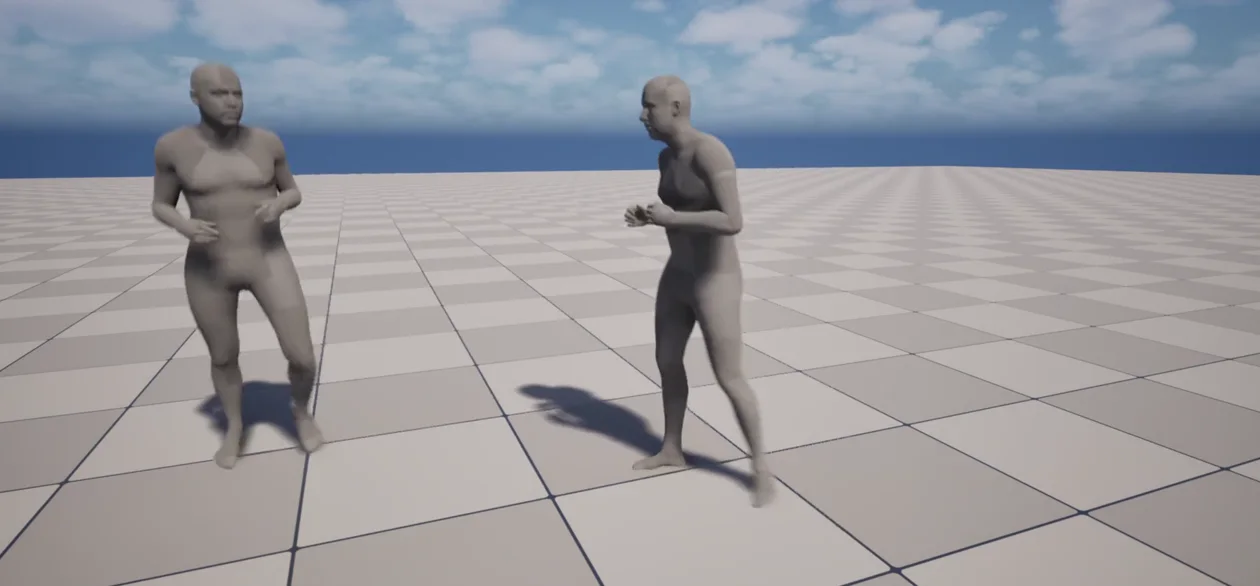
Track the body and hands, retarget directly to MetaHumans in Unreal Engine, or export animation as FBX for the rest of your pipeline.
- Body tracking
- Hand tracking
- FBX export
FBX animation works with
-
 Unreal Engine
-
 Blender
-
 Maya
-
 Cinema 4D
-
 iClone
-
 Unity
-
 Godot Engine
Humanoid Robot Retargeting.
Retarget motion captured with Asgard to all five humanoids bundled with NVIDIA’s open-source SOMA Retargeter.
-

- G1
- H2
-

- T1
-

- X2 Ultra
- A3T3
Control
Your Motion. Your Data.
Asgard processes footage on your workstation. Your recordings and animation stay local throughout the workflow, with no cloud dependency.
Documentation
Set up your cameras, record your first take, and bring the performance into Unreal Engine.
Printable checklistYour first capture in three steps
-
Set up your cameras
Use three cameras for one performer or four for two. Arrange them around the capture area in a 180° or 360° setup and keep hands and feet in frame.
-
Light and record
Use even lighting and clothing that contrasts with the background. Record at 60 fps, ideally in 4K. Asgard aligns takes using movement in the footage.
-
Bring it into Unreal Engine
Import your footage and process it locally in Asgard. Retarget the result directly to a MetaHuman or export the animation as FBX.
Capture setup checklist
System requirements
Asgard runs locally inside Unreal Engine and keeps footage on your machine.
- OS
- Windows
- GPU
- NVIDIA GeForce GTX 1070 or better
- VRAM
- 6 GB minimum
- Unreal Engine
- 5.6 or newer
- Video formats
- MP4 and MOV. Check codec support for your installed version.
Choosing cameras
Use three cameras for one performer or four for two performers. A wide field of view helps in smaller spaces.
- iPhone
- iPhone 11 or newer with an ultrawide camera
- Android
- Samsung Galaxy S22 Ultra, S23 Ultra, or S24 Ultra
- Action cameras
- DJI Osmo Action 4, Osmo Action 5 Pro, or GoPro HERO12 Black
Use distortion correction, Linear mode, or Dewarp mode when available. Check that the lens and mode support your chosen frame rate and resolution.
Camera placement and hand coverage
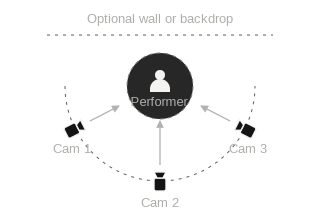
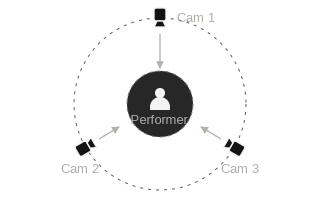
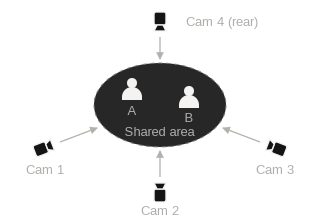
The 180° and 360° examples show one performer. For two performers, frame the entire shared capture area in all four cameras. Rehearse the closest interactions and stagger the performers if one regularly blocks the other. Check every view to make sure both heads, hands, and feet stay in frame.
- 360° capture. Place cameras around the performers to cover turns, spins, and movement in several directions.
- 180° capture. Arrange cameras in a semicircle facing the performers. This works well in smaller spaces or for action that faces forward.
- Four-camera alternative. Try three cameras in front and one behind if turns need more coverage.
- Optional handheld camera. Record close-ups of hands when they are hidden or small in the main views. Keep the main cameras stationary.
Spread the cameras apart on stable mounts. Start at waist height, about one metre above the floor, and aim at the centre. Rehearse the largest movement and adjust framing so heads, hands, fingers, and feet stay visible.
Recording settings
- Match cameras at 60 fps. Use 4K where practical and start at 1080p or higher.
- Start at a shutter speed of 1/120 second. Try 1/250 second or faster for quick motion if lighting permits.
- Lock exposure and focus where available, and keep white balance consistent across cameras.
- Disable electronic stabilization and horizon correction where possible.
- Check battery and storage before recording.
Prioritize sharp motion when choosing between resolution and shutter speed.
Remote recording and synchronization
Asgard aligns recordings by analyzing movement. You can start cameras independently as long as every recording contains the full performance.
For centralized control, check Blackmagic Camera on supported phones, Final Cut Camera with Final Cut Pro for iPad, Multicam: Action Cam Remote for supported action cameras, or a compatible GoPro or DJI hardware remote. App, camera, and smartwatch support varies. Test group recording before the shoot.
Lighting, clothing, and two performers
- Light performers evenly from head to toe. Minimize shadows, glare, backlighting, and flicker.
- Use an uncluttered background and fitted clothing with minimal shine.
- Choose footwear that contrasts with the floor and keep fingers visible.
- For two performers, use four cameras, choose distinct outfits, keep both people visible from several angles, and rehearse close interactions to reduce prolonged overlap.
Testing before the real take
Record a short rehearsal with fast movement, turns, gestures, and interactions. Check every view for cropping, blur, shadows, and blocked limbs. Process the rehearsal in Asgard and adjust cameras, lighting, or clothing based on the result.
Keep the original video files and organize them by camera and take.
Processing and export
Save your Unreal project before processing. Unreal Engine will close while Asgard renders locally on your GPU. Plan for the workstation to be unavailable during the render.
Recording length, resolution, and GPU performance affect processing time. When processing finishes, return to Unreal Engine to review the body and hand tracking, retarget to a MetaHuman, or export the animation as FBX.
Pricing
Professional Tools. One‑Time Purchase.
Buy Asgard once. No subscriptions.
Asgard Mocap
Motion capture plugin for Unreal Engine
- Markerless multicamera body and hand tracking
- Local processing on your GPU
- Direct MetaHuman retargeting
- FBX animation export
Professional Services.
Motion capture production, animation cleanup and retargeting for games, film and animation.